Installation
Huf is a Frappe application. This guide covers installing it on your Frappe site, whether you’re using Frappe Bench (self-hosted/local) or Frappe Cloud (managed hosting).
Prerequisites
Before installing, you need a working Frappe site. If you’re new to Frappe or don’t have a site yet, visit the Frappe Framework documentation to get started with Frappe first.
You should have:
- A Frappe site (Bench or Cloud)
- Terminal/console access to your site
- Python 3.8+ (usually already installed with Frappe)
New to Frappe Bench? Bench is the command-line tool for managing Frappe apps and sites. Think of it as a package manager for Frappe—it handles installation, updates, and management of multiple apps.
Installation on Frappe Bench
For self-hosted or local Frappe setups using Bench:
1. Navigate to Bench Directory
cd /path/to/your/frappe-benchReplace /path/to/your/frappe-bench with your actual Bench path (e.g., ~/frappe-bench).
2. Get the App
Download Huf from GitHub:
bench get-app https://github.com/tridz-dev/agent_flo.gitThis clones Huf into your apps/ directory.
3. Install on Your Site
Install Huf on your site (replace sitename with your actual site name):
bench --site sitename install-app huf4. Setup Dependencies
Huf requires LiteLLM and other Python packages. Install them:
bench setup requirements5. Restart
bench restart6. Verify
Log in to your Frappe site. Click the App Switcher (grid icon in the top-right) and look for Huf or AgentFlo. Click it to enter the Huf workspace.
Installation on Frappe Cloud
Frappe Cloud is managed Frappe hosting. You can install Huf using the web interface or via console commands.
Method 1: Using the Web Interface (Recommended)
Frappe Cloud provides a user-friendly interface for adding apps to your site.
1. Access Marketplace
Log in to frappecloud.com , navigate to your site, and open the Marketplace or Apps section. Click Add Marketplace App to open the app installation interface.
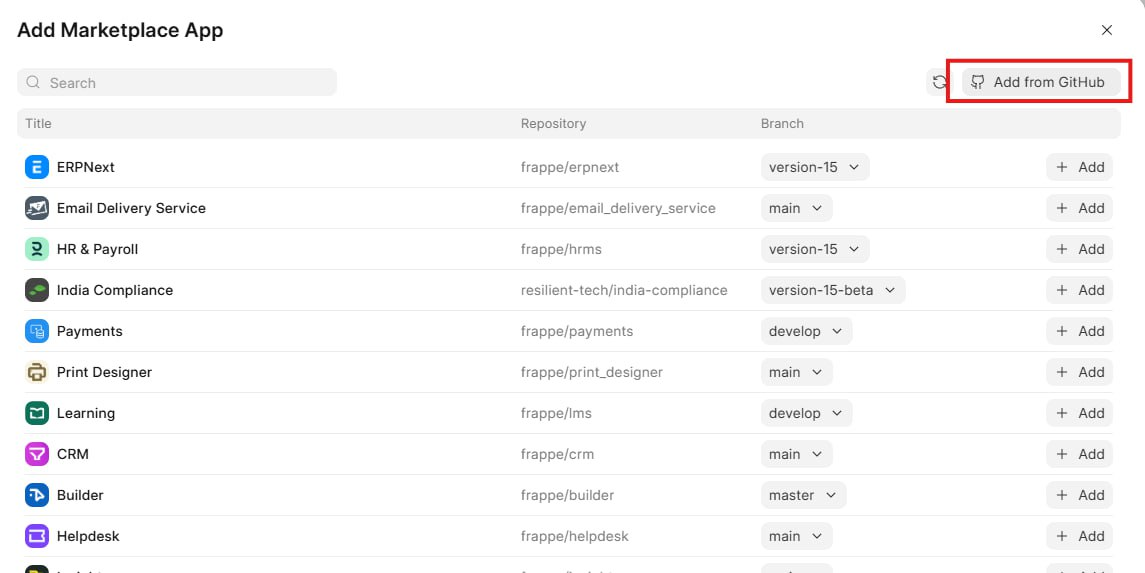
The marketplace shows available apps you can install. You can search for apps or add them directly from GitHub.
2. Add from GitHub
Click the Add from GitHub button (highlighted in the top-right corner of the marketplace interface).
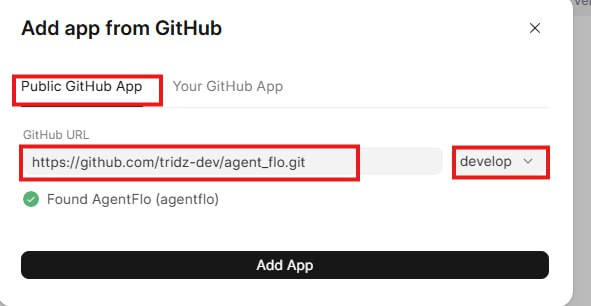
In the modal that appears:
- Select the “Public GitHub App” tab (if not already selected)
- Enter the GitHub URL:
https://github.com/tridz-dev/agent_flo - Select the branch you want to install
- The system will automatically detect the app as “Huf (huf)”
- Click Add App to begin installation
The app will be automatically installed and configured on your site.
3. Verify
After installation completes, refresh your site, open the App Switcher, and click Huf or AgentFlo.
Method 2: Using Console Commands
Alternatively, you can install Huf using console commands:
1. Access Console
Log in to frappecloud.com , go to your site, and open the Console (terminal icon).
2. Install
Run these commands in the console:
bench get-app https://github.com/tridz-dev/huf.git
bench --site $CI_COMMIT_REF_NAME install-app huf
bench setup requirements
bench restart
$CI_COMMIT_REF_NAMEis auto-set to your site name on Frappe Cloud.
3. Verify
Refresh your site, open the App Switcher, and click Huf.
Verify Installation
After installation, verify Huf is working:
- App Switcher shows “Huf” or “AgentFlo”
- You can open AI Provider from the Huf workspace
- No error messages in the console
Troubleshooting
“Command not found: bench”
- Bench is not installed or not in your PATH
- See Frappe installation docs
“App not found” or installation fails
- Verify you’re in the correct Bench directory
- Check your site name is correct:
bench --site sitename list-apps - Ensure internet connectivity (downloads from GitHub)
- Try
bench updatefirst to ensure Bench is current
Dependencies not installing
- Verify Python 3.8+ with
python3 --version - Ensure pip is available
- For dev environments, try
bench setup requirements --dev
LiteLLM errors
- Huf requires LiteLLM for AI providers
- Run
bench setup requirementsagain - Restart with
bench restart - Check logs:
bench --site sitename consolethenimport litellm
What’s Next?
Installation complete! Now create your first agent:
Quick Start Guide - Build a working agent in 5 minutes
Or explore the concepts:
- Interfaces - Understanding
/hufvs/app - Agents - What agents are and how they work
- Providers & Models - Connecting to AI services